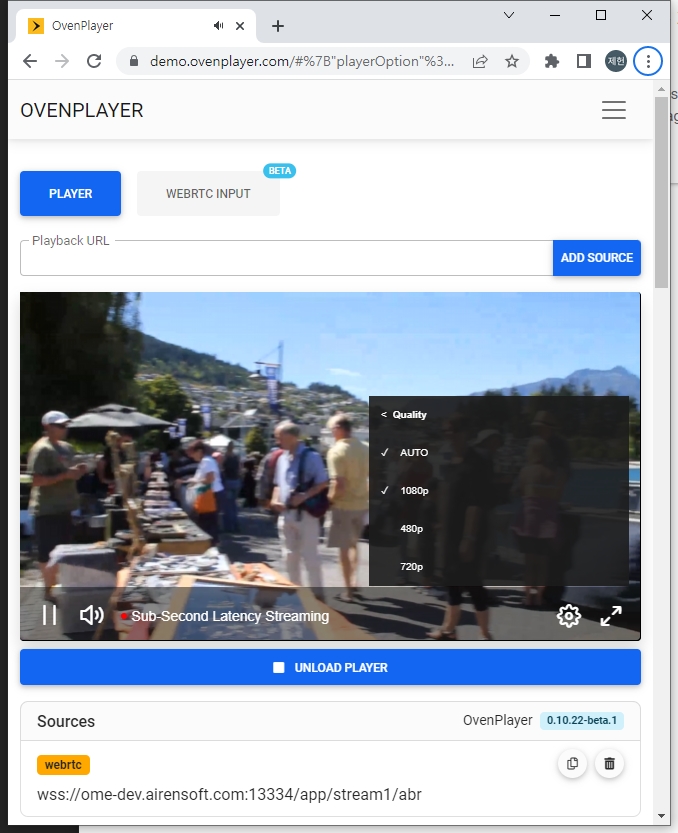
Apple supports Low-Latency HLS (LLHLS), which enables low-latency video streaming while maintaining scalability. LLHLS enables broadcasting with an end-to-end latency of about 2 to 5 seconds. OvenMediaEngine officially supports LLHLS as of v0.14.0.
LLHLS is an extension of HLS, so legacy HLS players can play LLHLS streams. However, the legacy HLS player plays the stream without using the low-latency function.
Container
fMP4 (Audio, Video)
Security
TLS (HTTPS)
Transport
HTTP/1.1, HTTP/2
Codec
H.264, H.265, AAC
Default URL Pattern
http[s]://{OvenMediaEngine Host}[:{LLHLS Port}]/{App Name}/{Stream Name}/master.m3u8
To use LLHLS, you need to add the <LLHLS> elements to the <Publishers> in the configuration as shown in the following example.
<Server>
    ...
    <Bind>
        <Publishers>
            <LLHLS>
                <!--
                    OME only supports h2, so LLHLS works over HTTP/1.1 on non-TLS ports.
                    LLHLS works with higher performance over HTTP/2,
                    so it is recommended to use a TLS port.
                -->
                <Port>80</Port>
                <TLSPort>443</TLSPort>
                <WorkerCount>1</WorkerCount>
            </LLHLS>
        </Publishers>
    </Bind>
    ...
    <VirtualHosts>
        <VirtualHost>
            <Applications>
                <Application>
                    <Publishers>
                        <LLHLS>
                            <ChunkDuration>0.2</ChunkDuration>
                            <SegmentDuration>6</SegmentDuration>
                            <SegmentCount>10</SegmentCount>
                            <CrossDomains>
                                <Url>*</Url>
                            </CrossDomains>
                        </LLHLS>
                    </Publishers>
                </Application>
            </Applications>
        </VirtualHost>
    </VirtualHosts>
    ...
</Server>Bind
Set the HTTP ports to provide LLHLS.
ChunkDuration
Set the partial segment length to fractional seconds. This value affects low-latency HLS player. We recommend 0.2 seconds for this value.
SegmentDuration
Set the length of the segment in seconds. Therefore, a shorter value allows the stream to start faster. However, a value that is too short will make legacy HLS players unstable. Apple recommends 6 seconds for this value.
SegmentCount
The number of segments listed in the playlist. This value has little effect on LLHLS players, so use 10 as recommended by Apple. 5 is recommended for legacy HLS players. Do not set below 3. It can only be used for experimentation.
CrossDomains
Control the domain in which the player works through <CrossDomain>. For more information, please refer to the section.
LLHLS can deliver adaptive bitrate streaming. OME encodes the same source with multiple renditions and delivers it to the players. And LLHLS Player, including OvenPlayer, selects the best quality rendition according to its network environment. Of course, these players also provide option for users to manually select rendition.
See the Adaptive Bitrates Streaming section for how to configure renditions.
For information on CrossDomains, see CrossDomains chapter.
LLHLS is ready when a live source is inputted and a stream is created. Viewers can stream using OvenPlayer or other players.
If your input stream is already h.264/aac, you can use the input stream as is like below. If not, or if you want to change the encoding quality, you can do Transcoding.
<!-- /Server/VirtualHosts/VirtualHost/Applications/Application/OutputProfiles -->
<OutputProfile>
    <Name>bypass_stream</Name>
    <OutputStreamName>${OriginStreamName}</OutputStreamName>
    <Encodes>
        <Audio>
            <Bypass>true</Bypass>
        </Audio>
        <Video>
            <Bypass>true</Bypass>
        </Video>
    </Encodes>
</OutputProfile>
When you create a stream, as shown above, you can play LLHLS with the following URL:
http[s]://{OvenMediaEngine Host}[:{LLHLS Port}]/{App Name}/{Stream Name}/master.m3u8
If you use the default configuration, you can start streaming with the following URL:
http://{OvenMediaEngine Host}:3333/app/{Stream Name}/master.m3u8
We have prepared a test player that you can quickly see if OvenMediaEngine is working. Please refer to the Test Player for more information.
You can create as long a playlist as you want by setting <DVR> to the LLHLS publisher as shown below. This allows the player to rewind the live stream and play older segments. OvenMediaEngine stores and uses old segments in a file in <DVR>/<TempStoragePath> to prevent excessive memory usage. It stores as much as <DVR>/<MaxDuration> and the unit is seconds.
<!-- /Server/VirtualHosts/VirtualHost/Applications/Application/Publishers -->
<LLHLS>
    ...
    <DVR>
        <Enable>true</Enable>
        <TempStoragePath>/tmp/ome_dvr/</TempStoragePath>
        <MaxDuration>3600</MaxDuration>
    </DVR>
    ...
</LLHLS>ID3 Timed metadata can be sent to the LLHLS stream through the Send Event API.
You can dump the LLHLS stream for VoD. You can enable it by setting the following in <Application>/<Publishers>/<LLHLS>. Dump function can also be controlled by Dump API.
<!-- /Server/VirtualHosts/VirtualHost/Applications/Application/Publishers -->
<LLHLS>
    ...
    <Dumps>
        <Dump>
            <Enable>true</Enable>
            <TargetStreamName>stream*</TargetStreamName>

            <Playlists>
                <Playlist>llhls.m3u8</Playlist>
                <Playlist>abr.m3u8</Playlist>
            </Playlists>

            <OutputPath>/service/www/ome-dev.airensoft.com/html/${VHostName}_${AppName}_${StreamName}/${YYYY}_${MM}_${DD}_${hh}_${mm}_${ss}</OutputPath>
        </Dump>
    </Dumps>
    ...
</LLHLS>
<TargetStreamName>
The name of the stream to dump to. You can use * and ? to filter stream names.
<Playlists>
The name of the master playlist file to be dumped together.
<OutputPath>
The folder to output to. In the <OutputPath> you can use the macros shown in the table below. You must have write permission on the specified folder.
${VHostName}
Virtual Host Name
${AppName}
Application Name
${StreamName}
Stream Name
${YYYY}
Year
${MM}
Month
${DD}
Day
${hh}
Hour
${mm}
Minute
${ss}
Second
${S}
Timezone
${z}
UTC offset (ex: +0900)
${ISO8601}
Current time in ISO8601 format
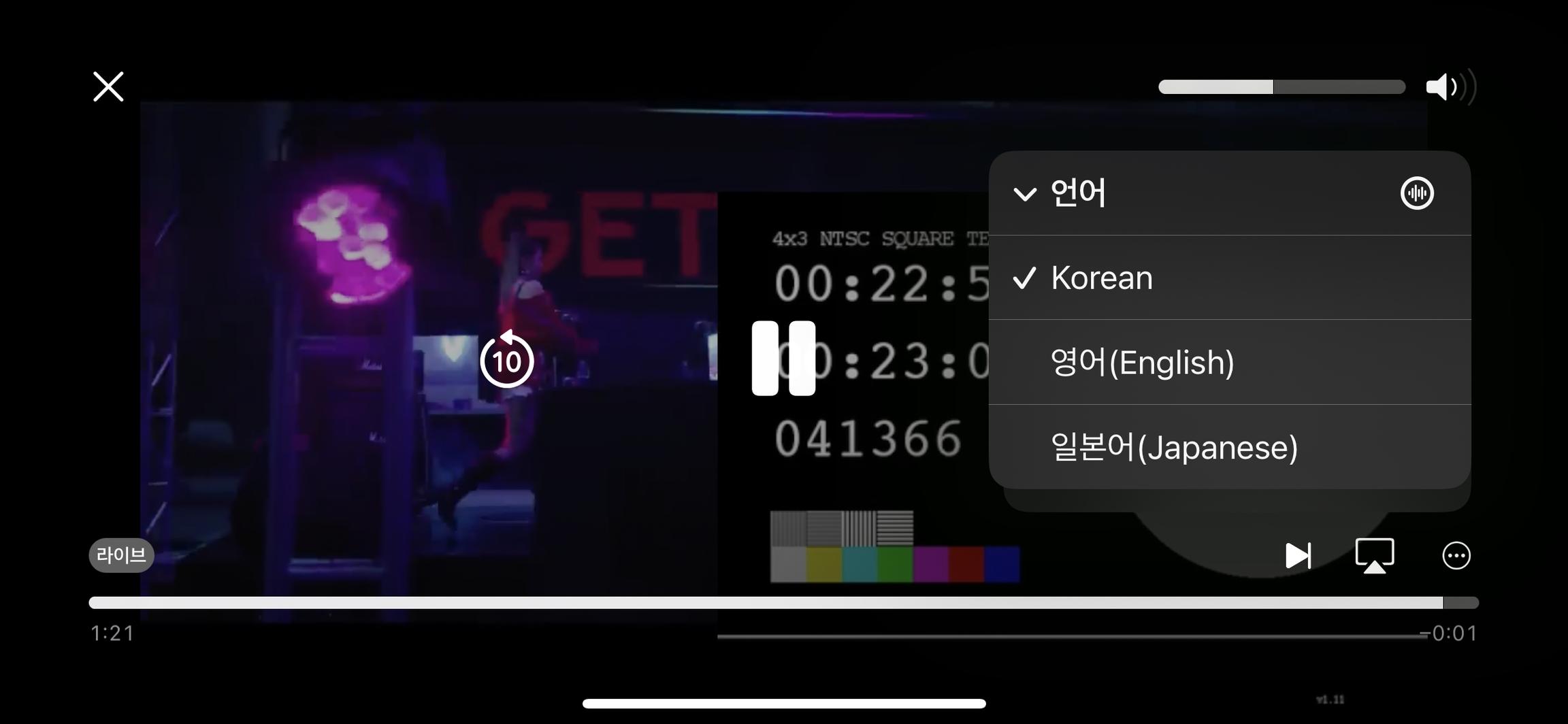
OvenMediaEngine supports Multiple Audio Tracks in LLHLS. When multiple audio signals are input through a Provider, the LLHLS Publisher can utilize them to provide multiple audio tracks.
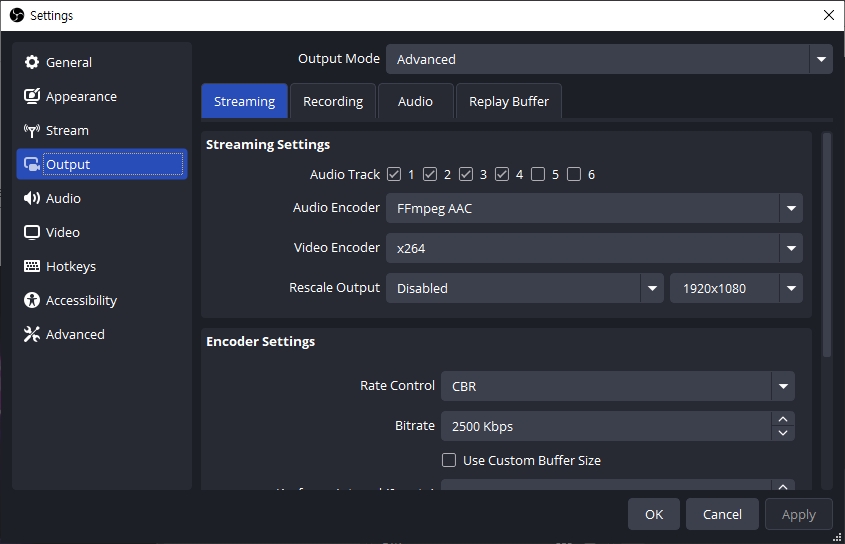
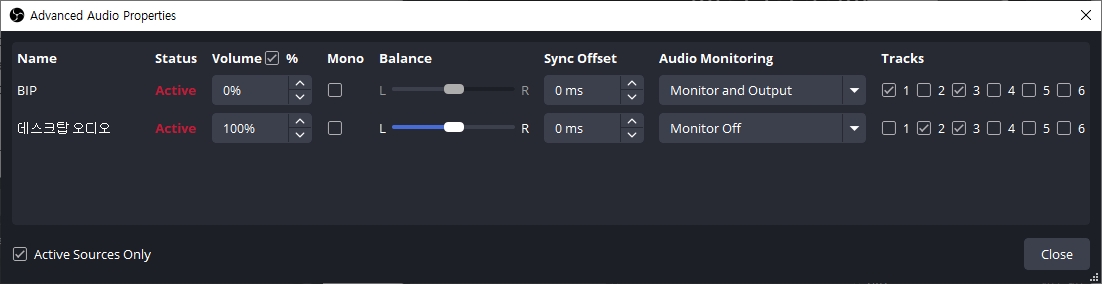
By simply sending multiple audio signals through SRT or Scheduled Channel, the LLHLS Publisher can provide multiple audio tracks. For example, to send multiple audio signals via SRT from OBS, you need to select multiple Audio Tracks and configure the Advanced Audio Properties to assign the appropriate audio to each track.
Since the incoming audio signals do not have labels, you can enhance usability by assigning labels to each audio signal as follows.
To assign labels to audio signals in the SRT Provider, configure the <AudioMap> as shown below:
<!-- /Server/VirtualHosts/VirtualHost/Applications/Application -->
<Providers>
    <SRT>
        <AudioMap>
            <Item>
                <Name>English</Name>
                <Language>en</Language> <!-- Optioanl, RFC 5646 -->
                <Characteristics>public.accessibility.describes-video</Characteristics> <!-- Optional -->
            </Item>
            <Item>
                <Name>Korean</Name>
                <Language>ko</Language> <!-- Optioanl, RFC 5646 -->
                <Characteristics>public.alternate</Characteristics> <!-- Optional -->
            </Item>
            <Item>
                <Name>Japanese</Name>
                <Language>ja</Language> <!-- Optioanl, RFC 5646 -->
                <Characteristics>public.alternate</Characteristics> <!-- Optional -->
            </Item>
        </AudioMap>
    ...
    </SRT>
</Providers><?xml version="1.0" encoding="UTF-8"?>
<Schedule>
<Stream>
<Name>today</Name>
<BypassTranscoder>false</BypassTranscoder>
<VideoTrack>true</VideoTrack>
<AudioTrack>true</AudioTrack>
<AudioMap>
<Item>
<Name>English</Name>
<Language>en</Language> <!-- Optioanl, RFC 5646 -->
<Characteristics>public.accessibility.describes-video</Characteristics> <!-- Optional -->
</Item>
<Item>
<Name>Korean</Name>
<Language>ko</Language> <!-- Optioanl, RFC 5646 -->
<Characteristics>public.alternate</Characteristics> <!-- Optional -->
</Item>
<Item>
<Name>Japanese</Name>
<Language>ja</Language> <!-- Optioanl, RFC 5646 -->
<Characteristics>public.alternate</Characteristics> <!-- Optional -->
</Item>
</AudioMap>
</Stream>
</Schedule>OvenMediaEngine supports Widevine and Fairplay in LLHLS with simple setup since version 0.16.0.
Currently, DRM is only supported for H.264 and AAC codecs. Support for H.265 will be added soon.
To include DRM information in your LLHLS Publisher configuration, follow these steps. You can set the <InfoFile> path as either a relative path, starting from the directory where Server.xml is located, or as an absolute path.
<!-- /Server/VirtualHosts/VirtualHost/Applications/Application -->
<Publishers>
    <LLHLS>
        <ChunkDuration>0.5</ChunkDuration>
        <PartHoldBack>1.5</PartHoldBack>
        <SegmentDuration>6</SegmentDuration>
        <SegmentCount>10</SegmentCount>
        <DRM>
            <Enable>false</Enable>
            <InfoFile>path/to/file.xml</InfoFile>
        </DRM>
        <CrossDomains>
            <Url>*</Url>
        </CrossDomains>
    </LLHLS>
</Publishers>
The separation of the <DRM>/<InfoFile> is designed to allow dynamic changes to the file. Any modifications to the <DRM>/<InfoFile> will take effect when a new stream is generated.
Here's how you should structure your DRM Info File:
<?xml version="1.0" encoding="UTF-8"?>
<DRMInfo>
    <DRM>
        <Name>MultiDRM</Name>
        <VirtualHostName>default</VirtualHostName>
        <ApplicationName>app</ApplicationName>
        <StreamName>stream*</StreamName> <!-- Can be a wildcard regular expression -->
        <CencProtectScheme>cbcs</CencProtectScheme> <!-- Currently supports cbcs only -->
        <KeyId>572543f964e34dc68ba9ba9ef91d4xxx</KeyId> <!-- Hexadecimal -->
        <Key>16cf4232a86364b519e1982a27d90xxx</Key> <!-- Hexadecimal -->
        <Iv>572547f914e34dc68ba9ba9ef91d4xxx</Iv> <!-- Hexadecimal -->
        <Pssh>0000003f7073736800000000edef8ba979d64acea3c827dcd51d21ed0000001f1210572547f964e34dc68ba9ba9ef91d4c4a1a05657a64726d48f3c6899xxx</Pssh> <!-- Hexadecimal, for Widevine -->
        <!-- Add Pssh for FairPlay if needed -->
        <FairPlayKeyUrl>skd://fiarplay_key_url</FairPlayKeyUrl> <!-- FairPlay only -->
    </DRM>
    <DRM>
        <Name>MultiDRM2</Name>
        <VirtualHostName>default</VirtualHostName>
        <ApplicationName>app2</ApplicationName>
        <StreamName>stream*</StreamName> <!-- Can be a wildcard regular expression -->
        ...........
    </DRM>
</DRMInfo>
Multiple <DRM> can be set. Specify the <VirtualHostName>, <ApplicationName>, and <StreamName> where DRM should be applied. <StreamName> supports wildcard regular expressions.
Currently, <CencProtectScheme> only supports cbcs since FairPlay also supports only cbcs. There may be limited prospects for adding other schemes in the near future.
<KeyId>, <Key>, <Iv> and <Pssh> values are essential and should be provided by your DRM provider. <FairPlayKeyUrl> is only need for FairPlay and if you want to enable FairPlay to your stream, it is required. It will be also provided by your DRM provider.
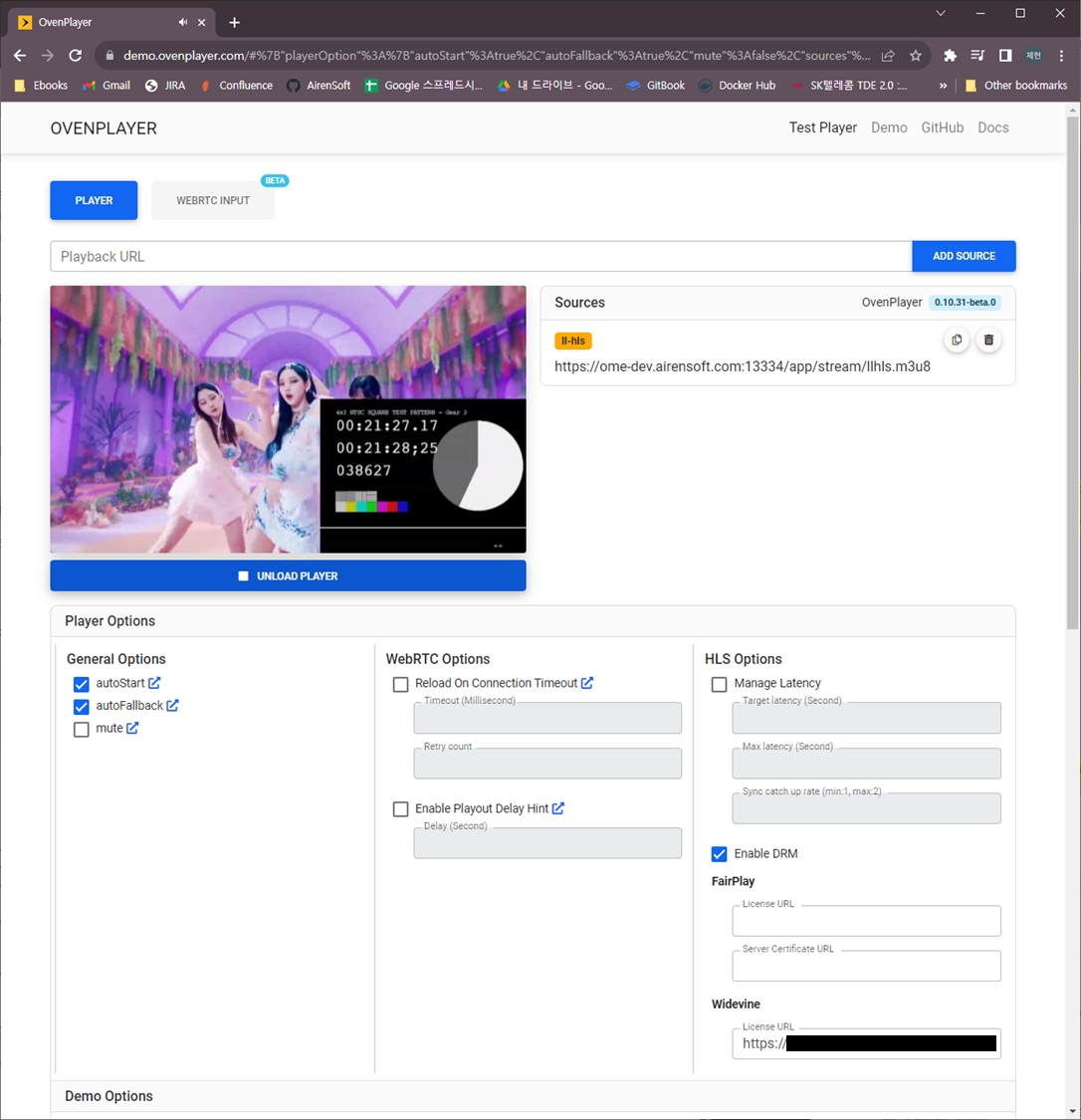
OvenPlayer now includes DRM-related options. Enable DRM and input the License URL. Your content is now securely protected.
Pallycon is no longer supported by the Open Source project and is only supported in the Enterprise version. For more information, see this article.
OvenMediaEngine integrates with Pallycon, allowing you to more easily apply DRM to LLHLS streams.
To integrate Pallycon, configure the DRMInfo.xml file as follows.
<?xml version="1.0" encoding="UTF-8"?>
<DRMInfo>
    <DRM>
        <Name>Pallycon</Name>
        <VirtualHostName>default</VirtualHostName>
        <ApplicationName>app</ApplicationName>
        <StreamName>stream*</StreamName> <!-- Can be wildcard regular expression -->

        <DRMProvider>Pallycon</DRMProvider> <!-- Manual(default), Pallycon -->
        <DRMSystem>Widevine,Fairplay</DRMSystem> <!-- Widevine, Fairplay -->
        <CencProtectScheme>cbcs</CencProtectScheme> <!-- cbcs, cenc -->
        <ContentId>${VHostName}_${AppName}_${StreamName}</ContentId>
        <KMSUrl>https://kms.pallycon.com/v2/cpix/pallycon/getKey/</KMSUrl>
        <KMSToken>xxxx</KMSToken>
    </DRM>
</DRMInfo>
Set <DRMProvider> to Pallycon. Then, set the necessary information as shown in the example. <KMSUrl> and <KMSToken> are values provided by the Pallycon console. <ContentId> can be created using ${VHostName}, ${AppName}, and ${StreamName} macros.
OvenMediaEngine supports playback of streams delivered via RTMP, WebRTC, SRT, MPEG-2 TS, and RTSP using SRT-compatible players or integration with other SRT-enabled systems.
Container
MPEG-2 TS
Transport
SRT
Codec
H.264, H.265, AAC
Additional Features
Simulcast
Default URL Pattern
srt://{OvenMediaEngine Host}:{SRT Port}?streamid={Virtual Host Name}/{App Name}/{Stream Name}/master
Currently, OvenMediaEngine supports H.264, H.265, AAC codecs for SRT playback, ensuring the same compatibility as its SRT provider functionality.
To configure the port for SRT to listen on, use the following settings:
<Server>
    <Bind>
        <Publishers>
            <SRT>
                <Port>9998</Port>
                <!-- <WorkerCount>1</WorkerCount> -->
                <!--
                    To configure SRT socket options, you can use the settings shown below.
                    For more information, please refer to the details at the bottom of this document:
                    <Options>
                        <Option>...</Option>
                    </Options>
                -->
            </SRT>
            ...
        </Publishers>
    </Bind>
</Server>
The SRT Publisher must be configured to use a different port than the one used by the SRT Provider.
You can control whether to enable SRT playback for each application. To activate this feature, configure the settings as shown below:
<!-- /Server/VirtualHosts/VirtualHost/Applications -->
<Application>
    ...
    <Publishers>
        <SRT />
        ...
    </Publishers>
</Application>streamidAs with using SRT as a live source, multiple streams can be serviced on a single port. To distinguish each stream, you must set the streamid in the format {Virtual Host Name}/{App Name}/{Stream Name}/{Playlist Name}.
streamid={Virtual Host Name}/{App Name}/{Stream Name}/{Playlist Name}
SRT clients such as FFmpeg, OBS Studio, and srt-live-transmit allow you to specify the streamid as a query string appended to the SRT URL. For example, you can specify the streamid in the SRT URL like this to play a specific SRT stream: srt://{OvenMediaEngine Host}:{SRT Port}?streamid={streamid}.
To ensure that SRT streaming works correctly, you can use tools like FFmpeg or OBS Studio to verify the functionality. Here is the guidance on how to playback the stream using the generated SRT URL.
The SRT URL to be used in the player is structured as follows:
srt://{OvenMediaEngine Host}:{SRT Port}?streamid={streamid}SRT Publisher creates a default playlist named master with the first track from each of the audio tracks and video tracks, and all data tracks.
For example, to playback the default/app/stream stream with the default playlist from OME listening on port 9998 at 192.168.0.160, use the following SRT URL:
srt://192.168.0.160:9998?streamid=default/app/stream/master
You can input the SRT URL as shown above into your SRT client. Below, we provide instructions on how to input the SRT URL for each client.
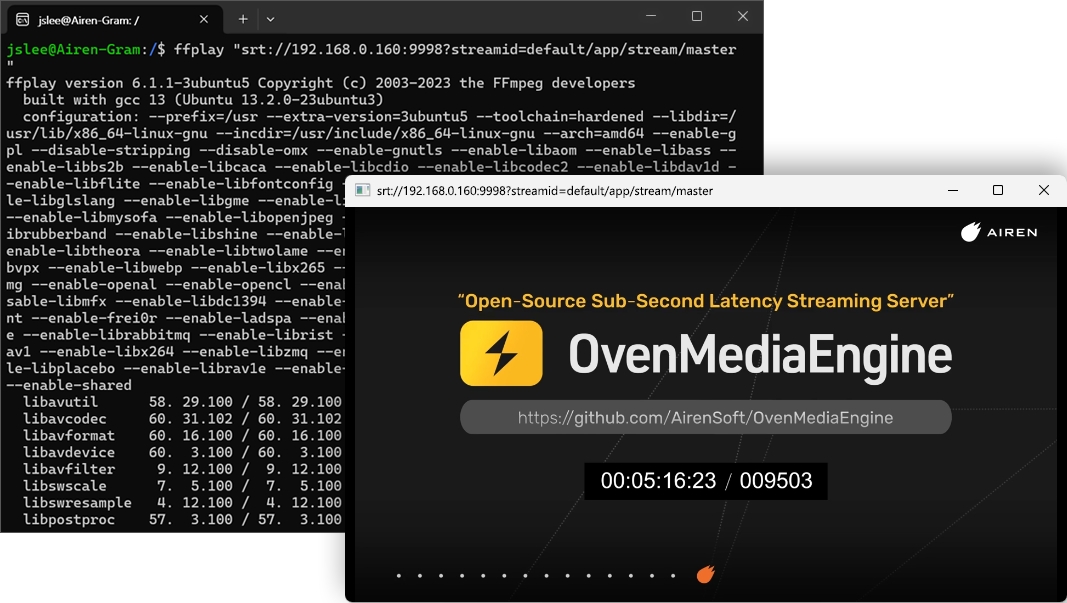
If you want to test SRT with FFplay, FFmpeg, or FFprobe, simply enter the SRT URL next to the command. For example, with FFplay, you can use the following command:
$ ffplay "srt://192.168.0.160:9998?streamid=default/app/stream/master"If you have multiple audio tracks, you can choose one with -ast parameter
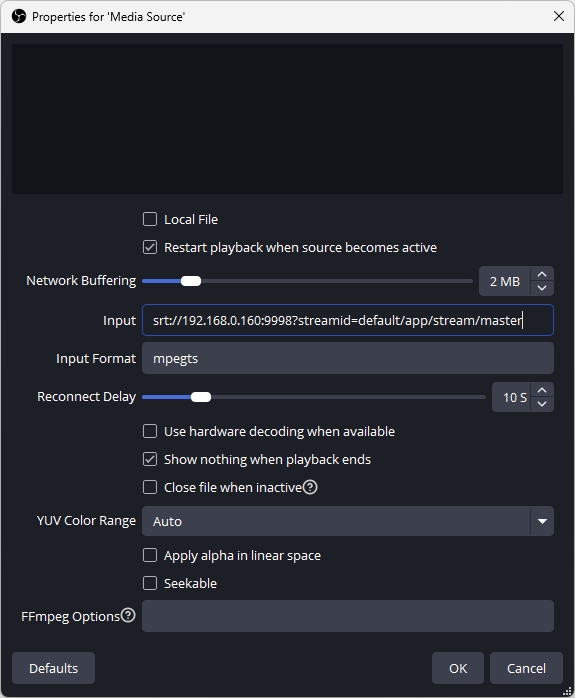
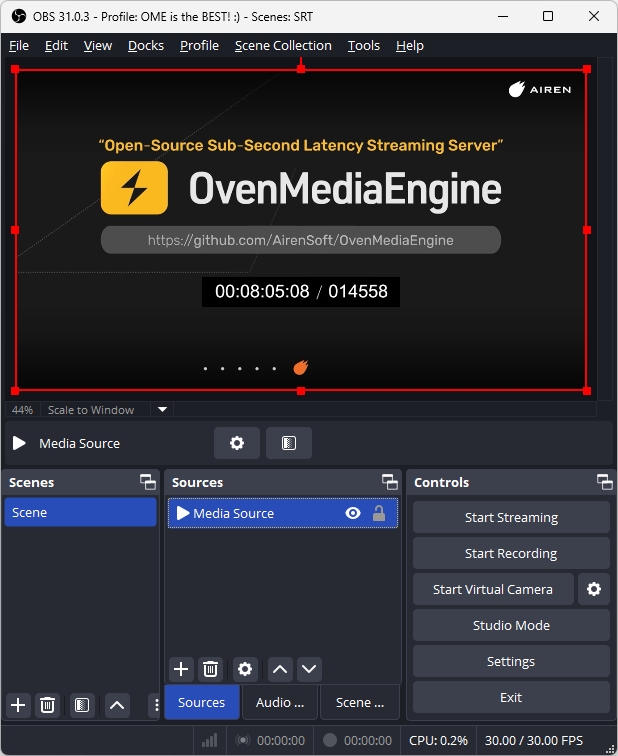
$ ffplay "srt://192.168.0.160:9998?streamid=default/app/stream/master" -ast 1OBS Studio offers the ability to add an SRT stream as an input source. To use this feature, follow the steps below to add a Media Source:
Once added, you will see the SRT stream as a source, as shown below. This added source can be used just like any other media source.
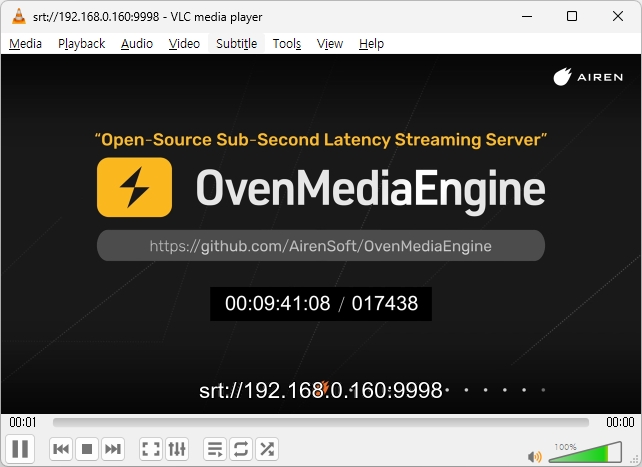
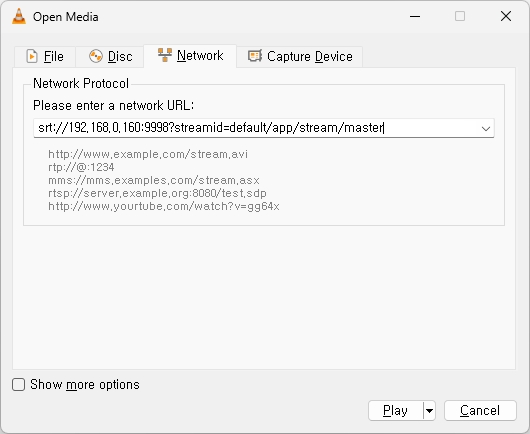
You can also playback the SRT stream in VLC. Simply select Media > Open Network Stream from the menu and enter the SRT URL:
When playing back stream via SRT, you can use a playlist configured for Adaptive Bitrate Streaming (ABR) to ensure that only specific audio/video renditions are delivered.
By utilizing this feature, you can provide services with different codecs, profiles, or other variations to meet diverse streaming requirements.
Since SRT does not support ABR, it uses only the first rendition when there are multiple renditions.
<!-- /Server/VirtualHosts/VirtualHost/Applications/Application/OutputProfiles -->
<OutputProfile>
    <Name>stream_pt</Name>
    <OutputStreamName>${OriginStreamName}</OutputStreamName>

    <Encodes>
        <!-- Audio/Video passthrough -->
        <Audio>
            <Name>audio_pt</Name>
            <Bypass>true</Bypass>
        </Audio>
        <Video>
            <Name>video_pt</Name>
            <Bypass>true</Bypass>
        </Video>

        <!-- Encode Video -->
        <Video>
            <Name>video_360p</Name>
            <Codec>h264</Codec>
            <Height>360</Height>
            <Bitrate>200000</Bitrate>
        </Video>
        <Video>
            <Name>video_1080p</Name>
            <Codec>h264</Codec>
            <Height>1080</Height>
            <Bitrate>7000000</Bitrate>
        </Video>
    </Encodes>

    <!-- SRT URL: srt://<host>:<port>?streamid=host/app/stream/360p -->
    <Playlist>
        <Name>Low</Name>
        <FileName>360p</FileName>
        <Options>
            <EnableTsPackaging>true</EnableTsPackaging>
        </Options>
        <Rendition>
            <Name>360p</Name>
            <Video>video_360p</Video>
            <Audio>audio_pt</Audio>
        </Rendition>

        <!--
            This is an example to show how it behaves when using multiple renditions in SRT.
            Since SRT only uses the first rendition, this rendition is ignored.
        -->
        <Rendition>
            <Name>passthrough</Name>
            <Video>video_pt</Video>
            <Audio>audio_pt</Audio>
        </Rendition>
    </Playlist>

    <!-- SRT URL: srt://<host>:<port>?streamid=default/app/stream/1080p -->
    <Playlist>
        <Name>High</Name>
        <FileName>1080p</FileName>
        <Options>
            <EnableTsPackaging>true</EnableTsPackaging>
        </Options>
        <Rendition>
            <Name>1080p</Name>
            <Video>video_1080p</Video>
            <Audio>audio_pt</Audio>
        </Rendition>
    </Playlist>
</OutputProfile>To play a stream using a particular playlist, specify the Playlist.FileName to the playlist name in the SRT playback URL, as shown below:
SRT playback URL using default playlist
srt://192.168.0.160:9998?streamid=host/app/stream/masterSRT playback URL using 360p playlist
srt://192.168.0.160:9998?streamid=host/app/stream/360pSRT playback URL using 1080p playlist
srt://192.168.0.160:9998?streamid=host/app/stream/1080pYou can configure SRT's socket options of the OvenMediaEngine server using <Options>. This is particularly useful when setting the encryption for SRT, and you can specify a passphrase by configuring as follows:
<Server>
    <Bind>
        <Publishers>
            <SRT>
                ...
                <Options>
                    <Option>
                        <Key>SRTO_PBKEYLEN</Key>
                        <Value>16</Value>
                    </Option>
                    <Option>
                        <Key>SRTO_PASSPHRASE</Key>
                        <Value>thisismypassphrase</Value>
                    </Option>
                </Options>
            </SRT>
...
For more information on SRT socket options, please refer to https://github.com/Haivision/srt/blob/v1.5.2/docs/API/API-socket-options.md#list-of-options.
Beta
MaxDurationHLS is still in development and some features such as SignedPolicy and AdmissionWebhooks are not supported.
HLS based on MPEG-2 TS containers is still useful because it provides high compatibility, including support for older devices. Therefore, OvenMediaEngine decided to officially support HLS version 7+ based on fragmented MP4 containers, called LL-HLS, as well as HLS version 3+ based on MPEG-2 TS containers.
To use HLS, you need to add the <HLS> elements to the <Publishers> in the configuration as shown in the following example.
Safari Native Player only provides the Seek UI if #EXT-X-PLAYLIST-TYPE: EVENT is present. Since it is specified that nothing can be removed from the playlist when it is of type EVENT, you must call the to switch to VoD or terminate the stream before <MaxDuration> is exceeded if you use this option. Otherwise, unexpected behavior may occur in the Safari Player.
HLS is ready when a live source is inputted and a stream is created. Viewers can stream using OvenPlayer or other players.
If your input stream is already h.264/aac, you can use the input stream as is like below. If not, or if you want to change the encoding quality, you can do .
HLS Publisher basically creates a master.m3u8 Playlist using the first video track and the first audio track. When you create a stream, as shown above, you can play HLS with the following URL:
http[s]://{OvenMediaEngine Host}[:{HLS Port}]/{App Name}/{Stream Name}/ts:mster.m3u8
http[s]://{OvenMediaEngine Host}[:{HLS Port}]/{App Name}/{Stream Name}/master.m3u8?format=ts
If you use the default configuration, you can start streaming with the following URL:
http://{OvenMediaEngine Host}:3333/{App Name}/{Stream Name}/ts:master.m3u8
http://{OvenMediaEngine Host}:3333/{App Name}/{Stream Name}/master.m3u8?format=ts
We have prepared a test player that you can quickly see if OvenMediaEngine is working. Please refer to the for more information.
HLS can deliver adaptive bitrate streaming. OME encodes the same source with multiple renditions and delivers it to the players. And HLS Player, including OvenPlayer, selects the best quality rendition according to its network environment. Of course, these players also provide option for users to manually select rendition.
See the section for how to configure renditions.
HLS Publisher basically creates the master.m3u8 Playlist using the first video track and the first audio track. If you want to create a new playlist for ABR, you can add it to Server.xml as follows:
For information on CrossDomains, see chapter.
You can create as long a playlist as you want by setting <DVR> to the HLS publisher as shown below. This allows the player to rewind the live stream and play older segments. OvenMediaEngine stores and uses old segments in a file in <DVR>/<TempStoragePath> to prevent excessive memory usage. It stores as much as <DVR>/<MaxDuration> and the unit is seconds.
Container
MPEG-2 TS
(Only supports Audio/Video muxed)
Security
TLS (HTTPS)
Transport
HTTP/1.1, HTTP/2
Codec
H.264, H.265, AAC
Apple Safari does not support H.265 (HEVC) in MPEG-TS format.
Default URL Pattern
http[s]://{OvenMediaEngine Host}[:{HLS Port}]/{App Name}/{Stream Name}/ts:master.m3u8
http[s]://{OvenMediaEngine Host}[:{HLS Port}]/{App Name}/{Stream Name}/master.m3u8?format=ts
<Server>
    <Bind>
        <Publishers>
            <HLS>
                <Port>13333</Port>
                <TLSPort>13334</TLSPort>
                <WorkerCount>1</WorkerCount>
            </HLS>
        </Publishers>
    </Bind>
    ...
    <VirtualHosts>
        <VirtualHost>
            <Applications>
                <Application>
                    <Publishers>
                        <HLS>
                            <SegmentCount>5</SegmentCount>
                            <SegmentDuration>4</SegmentDuration>
                            <DVR>
                                <Enable>true</Enable>
                                <EventPlaylistType>false</EventPlaylistType>
                                <TempStoragePath>/tmp/ome_dvr/</TempStoragePath>
                                <MaxDuration>600</MaxDuration>
                            </DVR>
                            <CrossDomains>
                                <Url>*</Url>
                            </CrossDomains>
                        </HLS>
                    </Publishers>
                </Application>
            </Applications>
        </VirtualHost>
    </VirtualHosts>
</Server>
Bind
Set the HTTP ports to provide HLS.
SegmentDuration
Set the length of the segment in seconds. Therefore, a shorter value allows the stream to start faster. However, a value that is too short will make legacy HLS players unstable. Apple recommends 6 seconds for this value.
SegmentCount
The number of segments listed in the playlist. 5 is recommended for HLS players. Do not set below 3. It can only be used for experimentation.
CrossDomains
Control the domain in which the player works through <CrossDomain>. For more information, please refer to the CrossDomains section.
DVR
Enable You can turn DVR on or off.
EventPlaylistType
Inserts #EXT-X-PLAYLIST-TYPE: EVENT into the m3u8 file.
TempStoragePath Specifies a temporary folder to store old segments.
MaxDuration Sets the maximum duration of recorded files in milliseconds.
<!-- /Server/VirtualHosts/VirtualHost/Applications/Application/OutputProfiles -->
<OutputProfile>
    <Name>bypass_stream</Name>
    <OutputStreamName>${OriginStreamName}</OutputStreamName>
    <Encodes>
        <Audio>
            <Bypass>true</Bypass>
        </Audio>
        <Video>
            <Bypass>true</Bypass>
        </Video>
    </Encodes>
    ...
</OutputProfile><?xml version="1.0" encoding="UTF-8"?>
<OutputProfile>
<Name>abr_stream</Name>
<OutputStreamName>${OriginStreamName}</OutputStreamName>
<Playlist>
<Name>abr</Name>
<FileName>abr</FileName>
<Options>
<HLSChunklistPathDepth>0</HLSChunklistPathDepth>
<EnableTsPackaging>true</EnableTsPackaging>
</Options>
<Rendition>
<Name>SD</Name>
<Video>video_360</Video>
<Audio>aac_audio</Audio>
</Rendition>
<Rendition>
<Name>HD</Name>
<Video>video_720</Video>
<Audio>aac_audio</Audio>
</Rendition>
<Rendition>
<Name>FHD</Name>
<Video>video_1080</Video>
<Audio>aac_audio</Audio>
</Rendition>
</Playlist>
<Encodes>
<Audio>
<Name>aac_audio</Name>
<Codec>aac</Codec>
<Bitrate>128000</Bitrate>
<Samplerate>48000</Samplerate>
<Channel>2</Channel>
<BypassIfMatch>
<Codec>eq</Codec>
</BypassIfMatch>
</Audio>
<Video>
<Name>video_360</Name>
<Codec>h264</Codec>
<Bitrate>365000</Bitrate>
<Framerate>30</Framerate>
<Width>640</Width>
<Height>360</Height>
<KeyFrameInterval>30</KeyFrameInterval>
<ThreadCount>2</ThreadCount>
<Preset>medium</Preset>
<BFrames>0</BFrames>
<ThreadCount>1</ThreadCount>
</Video>
<Video>
<Name>video_720</Name>
<Codec>h264</Codec>
<Profile>high</Profile>
<Bitrate>1500000</Bitrate>
<Framerate>30</Framerate>
<Width>1280</Width>
<Height>720</Height>
<KeyFrameInterval>30</KeyFrameInterval>
<Preset>medium</Preset>
<BFrames>2</BFrames>
<ThreadCount>4</ThreadCount>
</Video>
<Video>
<Name>video_1080</Name>
<Codec>h264</Codec>
<Bitrate>6000000</Bitrate>
<Framerate>30</Framerate>
<Width>1920</Width>
<Height>1080</Height>
<KeyFrameInterval>30</KeyFrameInterval>
<ThreadCount>8</ThreadCount>
<Preset>medium</Preset>
<BFrames>0</BFrames>
</Video>
</Encodes>
</OutputProfile><!-- /Server/VirtualHosts/VirtualHost/Applications/Application/Publishers -->
<HLS>
...
<DVR>
<Enable>true</Enable>
<TempStoragePath>/tmp/ome_dvr/</TempStoragePath>
<MaxDuration>3600</MaxDuration>
</DVR>
...
</HLS>OvenMediaEngine uses WebRTC to provide sub-second latency streaming. WebRTC uses RTP for media transmission and provides various extensions.
OvenMediaEngine provides the following features:
Container
RTP / RTCP
Security
DTLS, SRTP
Transport
ICE
Error Correction
ULPFEC (VP8, H.264), In-band FEC (Opus)
Codec
VP8, H.264, H.265, Opus
Signaling
Self-Defined Signaling Protocol, Embedded WebSocket-based Server / WHEP
Additional Features
Simulcast
Default URL Pattern
ws[s]://{OvenMediaEngine Host}[:{Signaling Port}/{App Name}/{Stream Name}/master
If you want to use the WebRTC feature, you need to add <WebRTC> element to the <Publishers> and <Ports> in the Server.xml configuration file, as shown in the example below.
<!-- /Server/Bind -->
<Publishers>
    ...
    <WebRTC>
        <Signalling>
            <Port>3333</Port>
            <TLSPort>3334</TLSPort>
            <WorkerCount>1</WorkerCount>
        </Signalling>
        <IceCandidates>
            <IceCandidate>*:10000-10005/udp</IceCandidate>
            <TcpRelay>*:3478</TcpRelay>
            <TcpForce>true</TcpForce>
            <TcpRelayWorkerCount>1</TcpRelayWorkerCount>
        </IceCandidates>
    </WebRTC>
    ...
</Publishers>WebRTC uses ICE for connections and specifically NAT traversal. The web browser or player exchanges the Ice Candidate with each other in the Signalling phase. Therefore, OvenMediaEngine provides an ICE for WebRTC connectivity.
If you set <IceCandidate> to *:10000-10005/udp, as in the example above, OvenMediaEngine automatically gets IP from the server and generates <IceCandidate> using UDP ports from 10000 to 10005. If you want to use a specific IP as IceCandidate, specify a specific IP. You can also use only one 10000 UDP Port, not a range, by setting it to *: 10000.
OvenMediaEngine has embedded a WebSocket-based signalling server and provides our defined signalling protocol. Also, OvenPlayer supports our signalling protocol. WebRTC requires signalling to exchange Offer SDP and Answer SDP, but this part isn't standardized. If you want to use SDP, you need to create your exchange protocol yourself.
If you want to change the signaling port, change the value of <Ports><WebRTC><Signalling>.
The Signalling protocol is defined in a simple way:
If you want to use a player other than OvenPlayer, you need to develop the signalling protocol as shown above and can integrate OvenMediaEngine.
Add <WebRTC> to <Publisher> to provide streaming through WebRTC.
<!-- /Server/VirtualHosts/VirtualHost/Applications/Application -->
<Publishers>
    ...
    <WebRTC>
        <Timeout>30000</Timeout>
        <Rtx>false</Rtx>
        <Ulpfec>false</Ulpfec>
        <JitterBuffer>false</JitterBuffer>
    </WebRTC>
    ...
</Publishers>Timeout
ICE (STUN request/response) timeout as milliseconds, if there is no request or response during this time, the session is terminated.
30000
Rtx
WebRTC retransmission, a useful option in WebRTC/udp, but ineffective in WebRTC/tcp.
false
Ulpfec
WebRTC forward error correction, a useful option in WebRTC/udp, but ineffective in WebRTC/tcp.
false
JitterBuffer
Audio and video are interleaved and output evenly, see below for details
false
WebRTC Streaming starts when a live source is inputted and a stream is created. Viewers can stream using OvenPlayer or players that have developed or applied the OvenMediaEngine Signalling protocol.
Also, the codecs supported by each browser are different, so you need to set the Transcoding profile according to the browser you want to support. For example, Safari for iOS supports H.264 but not VP8. If you want to support all browsers, please set up VP8, H.264, and Opus codecs in all transcoders.
WebRTC doesn't support AAC, so when trying to bypass transcoding RTMP input, audio must be encoded as opus. See the settings below.
<!-- /Server/VirtualHosts/VirtualHost/Applications/Application/OutputProfiles -->
<OutputProfile>
    <Name>bypass_stream</Name>
    <OutputStreamName>${OriginStreamName}</OutputStreamName>
    <Encodes>
        <Audio>
            <Bypass>true</Bypass>
        </Audio>
        <Video>
            <Bypass>true</Bypass>
        </Video>
        <Video>
            <!-- vp8, h264 -->
            <Codec>vp8</Codec>
            <Width>1280</Width>
            <Height>720</Height>
            <Bitrate>2000000</Bitrate>
            <Framerate>30.0</Framerate>
        </Video>
        <Audio>
            <Codec>opus</Codec>
            <Bitrate>128000</Bitrate>
            <Samplerate>48000</Samplerate>
            <Channel>2</Channel>
        </Audio>
    </Encodes>
</OutputProfile>If you created a stream as shown in the table above, you can play WebRTC on OvenPlayer via the following URL:
WebRTC Signalling
ws://{OvenMediaEngine Host}[:{Signaling Port}/{App Name}/{Stream Name}[/{Playlist Name}]
Secure WebRTC Signalling
wss://{OvenMediaEngine Host}[:{Signaling Port}/{App Name}/{Stream Name}[/{Playlist Name}]
If you use the default configuration, you can stream to the following URL:
ws://{OvenMediaEngine Host}:3333/app/stream
wss://{OvenMediaEngine Host}:3333/app/stream
We have prepared a test player to make it easy to check if OvenMediaEngine is working. Please see the Test Player chapter for more information.
OvenMediaEnigne provides adaptive bitrates streaming over WebRTC. OvenPlayer can also play and display OvenMediaEngine's WebRTC ABR URL.
You can provide ABR by creating a playlist in <OutputProfile> as shown below. The URL to play the playlist is ws[s]://{OvenMediaEngine Host}[:{Signaling Port}]/{App Name}/{Stream Name}/master.
<Playlist>/<Rendition>/<Video> and <Playlist>/<Rendition>/<Audio> can connected using <Encodes>/<Video>/<Name> or <Encodes>/<Audio>/<Name>.
It is not recommended to use a <Bypass>true</Bypass> encode item if you want a seamless transition between renditions because there is a time difference between the transcoded track and bypassed track.
If <Options>/<WebRtcAutoAbr> is set to true, OvenMediaEngine will measure the bandwidth of the player session and automatically switch to the appropriate rendition.
Here is an example play URL for ABR in the playlist settings below. wss://domain:13334/app/stream/master
<OutputProfiles>
<OutputProfile>
    <Name>default</Name>
    <OutputStreamName>${OriginStreamName}</OutputStreamName>

    <Playlist>
        <Name>for Webrtc</Name>
        <FileName>master</FileName>
        <Options>
            <WebRtcAutoAbr>false</WebRtcAutoAbr>
        </Options>
        <Rendition>
            <Name>1080p</Name>
            <Video>1080p</Video>
            <Audio>opus</Audio>
        </Rendition>
        <Rendition>
            <Name>480p</Name>
            <Video>480p</Video>
            <Audio>opus</Audio>
        </Rendition>
        <Rendition>
            <Name>720p</Name>
            <Video>720p</Video>
            <Audio>opus</Audio>
        </Rendition>
    </Playlist>

    <Playlist>
        <Name>for llhls</Name>
        <FileName>master</FileName>
        <Rendition>
            <Name>480p</Name>
            <Video>480p</Video>
            <Audio>bypass_audio</Audio>
        </Rendition>
        <Rendition>
            <Name>720p</Name>
            <Video>720p</Video>
            <Audio>bypass_audio</Audio>
        </Rendition>
    </Playlist>

    <Encodes>
        <Video>
            <Name>bypass_video</Name>
            <Bypass>true</Bypass>
        </Video>
        <Video>
            <Name>480p</Name>
            <Codec>h264</Codec>
            <Width>640</Width>
            <Height>480</Height>
            <Bitrate>500000</Bitrate>
            <Framerate>30</Framerate>
        </Video>
        <Video>
            <Name>720p</Name>
            <Codec>h264</Codec>
            <Width>1280</Width>
            <Height>720</Height>
            <Bitrate>2000000</Bitrate>
            <Framerate>30</Framerate>
        </Video>
        <Video>
            <Name>1080p</Name>
            <Codec>h264</Codec>
            <Width>1920</Width>
            <Height>1080</Height>
            <Bitrate>5000000</Bitrate>
            <Framerate>30</Framerate>
        </Video>
        <Audio>
            <Name>bypass_audio</Name>
            <Bypass>True</Bypass>
        </Audio>
        <Audio>
            <Name>opus</Name>
            <Codec>opus</Codec>
            <Bitrate>128000</Bitrate>
            <Samplerate>48000</Samplerate>
            <Channel>2</Channel>
        </Audio>
    </Encodes>
</OutputProfile>
</OutputProfiles>
See the Adaptive Bitrates Streaming section for more details on how to configure renditions.
WebRTC can negotiate codecs with SDP to support more devices. Playlist can set rendition with different kinds of codec. And OvenMediaEngine includes only renditions corresponding to the negotiated codec in the playlist and provides it to the player.
If an unsupported codec is included in the Rendition, the Rendition is not used. For example, if the Rendition's Audio contains aac, WebRTC ignores the Rendition.
In the example below, it consists of renditions with H.264 and Opus codecs set and renditions with VP8 and Opus codecs set. If the player selects VP8 in the answer SDP, OvenMediaEngine creates a playlist with only renditions containing VP8 and Opus and passes it to the player.
<Playlist>
    <Name>for Webrtc</Name>
    <FileName>abr</FileName>
    <Options>
        <WebRtcAutoAbr>false</WebRtcAutoAbr>
    </Options>
    <Rendition>
        <Name>1080p</Name>
        <Video>1080p</Video>
        <Audio>opus</Audio>
    </Rendition>
    <Rendition>
        <Name>480p</Name>
        <Video>480p</Video>
        <Audio>opus</Audio>
    </Rendition>
    <Rendition>
        <Name>720p</Name>
        <Video>720p</Video>
        <Audio>opus</Audio>
    </Rendition>

    <Rendition>
        <Name>1080pVp8</Name>
        <Video>1080pVp8</Video>
        <Audio>opus</Audio>
    </Rendition>
    <Rendition>
        <Name>480pVp8</Name>
        <Video>480pVp8</Video>
        <Audio>opus</Audio>
    </Rendition>
    <Rendition>
        <Name>720pVp8</Name>
        <Video>720pVp8</Video>
        <Audio>opus</Audio>
    </Rendition>
</Playlist>There are environments where the network speed is fast but UDP packet loss is abnormally high. In such an environment, WebRTC may not play normally. WebRTC does not support streaming using TCP, but connections to the TURN (https://tools.ietf.org/html/rfc8656) server support TCP. Based on these characteristics of WebRTC, OvenMediaEngine supports TCP connections from the player to OvenMediaEngine by embedding a TURN server.
You can turn on the TURN server by setting <TcpRelay> in the WebRTC Bind.
Example :
<TcpRelay>*:3478</TcpRelay>
OME may sometimes not be able to get the server's public IP to its local interface. (Environment like Docker or AWS) So, specify the public IP for Relay IP. If * is used, the public IP obtained from <StunServer> and all IPs obtained from the local interface are used. <Port> is the tcp port on which the TURN server is listening.
<Server version="8">
    ...
    <StunServer>stun.l.google.com:19302</StunServer>
    <Bind>
        <Publishers>
            <WebRTC>
                ...
                <IceCandidates>
                    <!-- <TcpRelay>*:3478</TcpRelay> -->
                    <TcpRelay>Relay IP:Port</TcpRelay>
                    <TcpForce>false</TcpForce>
                    <IceCandidate>*:10000-10005/udp</IceCandidate>
                </IceCandidates>
            </WebRTC>
        </Publishers>
    </Bind>
    ...
</Server> WebRTC players can configure the TURN server through the iceServers setting.
You can play the WebRTC stream over TCP by attaching the query transport=tcp to the existing WebRTC play URL as follows.
ws[s]://{OvenMediaEngine Host}[:{Signaling Port}]/{App Name}/{Stream Name}?transport=tcpOvenPlayer automatically sets iceServers by obtaining TURN server information set in <TcpRelay> through signaling with OvenMediaEngine.
If you are using custom player, set iceServers like this:
myPeerConnection = new RTCPeerConnection({
  iceServers: [
    {
      urls: "turn:Relay IP:Port?transport=tcp",
      username: "ome",
      credential: "airen"
    }
  ]
});
When sending Request Offer in the signaling phase with OvenMediaEngine, if you send the transport=tcp query string, ice_servers information is delivered as follows. You can use this information to set iceServers.
candidates: [{candidate: "candidate:0 1 UDP 50 192.168.0.200 10006 typ host", sdpMLineIndex: 0}]
code: 200
command: "offer"
ice_servers: [{credential: "airen", urls: ["turn:192.168.0.200:3478?transport=tcp"], user_name: "ome"}]
id: 506764844
peer_id: 0
sdp: {,…}