OvenMediaEngine provides Docker images from AirenSoft's Docker Hub (airensoft/ovenmediaengine) repository. You can easily use OvenMediaEngine server by using Docker image. See Getting Started with Docker for details.
OvenMediaEngine can work with a variety of open-sources and libraries. First, install them on your clean Linux machine as described below. We think that OME can support most Linux packages, but the tested platforms we use are Ubuntu 18+, Fedora 28+, Rocky Linux 8+, and AlmaLinux 8+.
You can build the OvenMediaEngine source using the following command:
The default configuration uses the following ports, so you need to open it in your firewall settings.
To use TLS, you must set up a certificate. See for more information.
You can open firewall ports as in the following example:
3478/TCP
WebRTC TCP relay (TURN Server, both ingest and streaming)
10000 - 10009/UDP
WebRTC Ice candidate (both ingest and streaming)
1935/TCP
RTMP Input
9999/UDP
SRT Input
4000/UDP
MPEG-2 TS Input
9000/TCP
Origin Server (OVT)
3333/TCP 3334/TLS
LLHLS Streaming * Streaming over Non-TLS is not allowed with modern browsers.
3333/TCP 3334/TLS
WebRTC Signaling (both ingest and streaming)
sudo apt-get update
cd OvenMediaEngine-0.19.0/src
make release
sudo make install
systemctl start ovenmediaengine
# If you want automatically start on boot
systemctl enable ovenmediaengine.service sudo dnf update
cd OvenMediaEngine-0.19.0/src
make release
sudo make install
systemctl start ovenmediaengine
# If you want automatically start on boot
systemctl enable ovenmediaengine.servicesudo dnf update
cd OvenMediaEngine-0.19.0/src
make release
sudo make install
systemctl start ovenmediaengine
# If you want automatically start on boot
systemctl enable ovenmediaengine.servicecurl -LOJ https://github.com/AirenSoft/OvenMediaEngine/archive/refs/tags/v0.19.0.tar.gz && \
tar xvfz OvenMediaEngine-0.19.0.tar.gz && \
OvenMediaEngine-0.19.0/misc/prerequisites.shsudo dnf update
cd OvenMediaEngine-0.19.0/src
make release
sudo make install
systemctl start ovenmediaengine
# If you want automatically start on boot
systemctl enable ovenmediaengine.service$ sudo firewall-cmd --add-port=3333/tcp
$ sudo firewall-cmd --add-port=3334/tcp
$ sudo firewall-cmd --add-port=1935/tcp
$ sudo firewall-cmd --add-port=9999/udp
$ sudo firewall-cmd --add-port=4000/udp
$ sudo firewall-cmd --add-port=3478/tcp
$ sudo firewall-cmd --add-port=9000/tcp
$ sudo firewall-cmd --add-port=10000-10009/udpYou can set the following environment variables.
OME_HOST_IP
*
OME_ORIGIN_PORT
9000
OME_RTMP_PROV_PORT
1935
OME_SRT_PROV_PORT
9999/udp
OME_MPEGTS_PROV_PORT
4000/udp
When you need to install a certificate in OME or apply a complex configuration, you can do it by following the procedure below to modify Server.xml inside Docker.
OvenMediaEngine docker container loads configuration files from the following path.
Server.xml
/opt/ovenmediaengine/bin/origin_conf/Server.xml
Logger.xml
/opt/ovenmediaengine/bin/origin_conf/Logger.xml
Server Certificate
/opt/ovenmediaengine/bin/origin_conf/cert.crt
Server certificate file in PEM format. The intermediate certificate must not be included.
Private Key
/opt/ovenmediaengine/bin/origin_conf/cert.key
This is the private key file of the certificate.
CA Bundle
/opt/ovenmediaengine/bin/origin_conf/cert.ca-bundle
A file containing root and intermediate certificates.
There are many ways to change files inside a Docker container, but this document describes how to change them using Docker's bind mounts.
Copy your PEM certificate files to the path below if you need to enable TLS. The destination file names must match if using the default configuration. If you want to change the file name, you can do so by editing the Server.xml configuration file. See TLS Encryption for details.
The command below will make your OvenMediaEngine docker container run with $OME_DOCKER_HOME/conf/Server.xml and $OME_DOCKER_HOME/conf/Logger.xml files on your host. It will also create $OME_DOCKER_HOME/logs/ovenmediaengine.log file.
docker run --name ome -d -e OME_HOST_IP=Your.HOST.IP.Address \
-p 1935:1935 -p 9999:9999/udp -p 9000:9000 -p 3333:3333 -p 3478:3478 -p 10000-10009:10000-10009/udp \
airensoft/ovenmediaengine:0.19.0export OME_DOCKER_HOME=/opt/ovenmediaengine
sudo mkdir -p $OME_DOCKER_HOME/conf
sudo mkdir -p $OME_DOCKER_HOME/logs
# Set permissions for the created directory if necessary.
sudo chgrp -R docker $OME_DOCKER_HOME
sudo chmod -R 775 $OME_DOCKER_HOME
# If you want to use OME_HOME permanently, add the following line to the ~/.profile file for bash, for other shells, you can do it accordingly.
echo "export OME_DOCKER_HOME=/opt/ovenmediaengine" >> ~/.profiledocker run -d --name tmp-ome airensoft/ovenmediaengine:0.19.0
docker cp tmp-ome:/opt/ovenmediaengine/bin/origin_conf/Server.xml $OME_DOCKER_HOME/conf
docker cp tmp-ome:/opt/ovenmediaengine/bin/origin_conf/Logger.xml $OME_DOCKER_HOME/conf
docker rm -f tmp-omecp /your/server_certificate_file.crt $OME_DOCKER_HOME/conf/cert.crt
cp /your/certificate_key_file.key $OME_DOCKER_HOME/conf/cert.key
cp /your/ca_bundle_file.ca-bundle $OME_DOCKER_HOME/conf/cert.ca-bundlevi $OME_DOCKER_HOME/conf/Server.xmldocker run -d -it --name ome -e OME_HOST_IP=Your.HOST.IP.Address \
-v $OME_DOCKER_HOME/conf:/opt/ovenmediaengine/bin/origin_conf \
-v $OME_DOCKER_HOME/logs:/var/log/ovenmediaengine \
-p 1935:1935 -p 9999:9999/udp -p 9000:9000 -p 3333:3333 -p 3478:3478 \
-p 10000-10009:10000-10009/udp \
airensoft/ovenmediaengine:0.19.0tail -f $OME_DOCKER_HOME/logs/ovenmediaengine.logdocker restart omedocker stop ome
docker rm omeOME_LLHLS_STREAM_PORT
3333
OME_LLHLS_STREAM_TLS_PORT
3334
OME_WEBRTC_SIGNALLING_PORT
3333
OME_WEBRTC_SIGNALLING_TLS_PORT
3334
OME_WEBRTC_TCP_RELAY_PORT
3478
OME_WEBRTC_CANDIDATE_PORT
10000-10004/udp
The OME Docker Launcher is a tool that simplifies the process of deploying and managing the OvenMediaEngine (OME) application using Docker containers. This tool can be used by developers and system administrators who want to quickly deploy and test the OME application in a Docker environment.
The OME Docker Launcher provides a set of commands that allow users to easily manage the OME Docker container. These commands include:
This command pulls the OME Docker image(airensoft/ovenmediaengine:0.19.0) from the Docker registry and copies the necessary configuration files to a specified location. This command needs to be run before starting the OME Docker container.
This command creates and starts the Docker container. Once the container is started, the OME application can be accessed through a web browser using the container's IP address.
This command launches a bash shell inside the running OME Docker container, allowing users to execute commands and interact with the container.
This command displays the status of the running OME Docker container, including information such as the container name, and running status.
This command stops the running OME Docker container.
This command stops and then starts the OME Docker container.
Using the OME Docker Launcher, you can easily set up and manage an OME Docker container, without having to manually configure and manage the Docker container. This can save time and effort, especially for users who are not familiar with Docker or who do not want to spend time manually setting up and configuring the OME application.
Run the following command in your Linux shell.
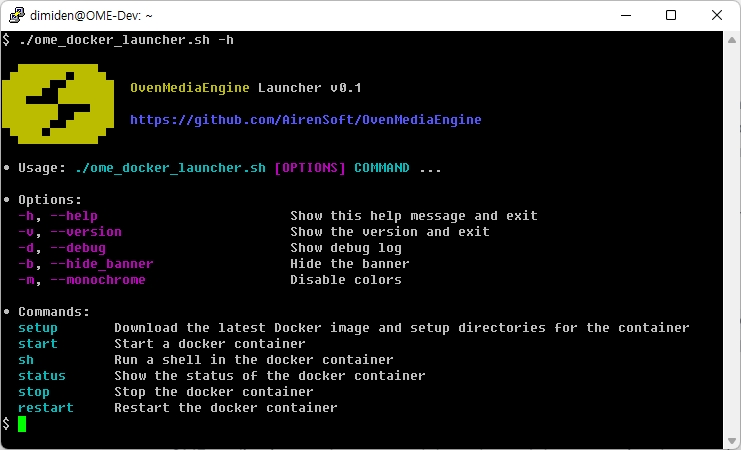
Below is an example of execution:
OME Docker Launcher can be executed in the following format:
setupThe setup command pulls the OME Docker image from the Docker registry and copies the necessary configuration files to the host's /usr/share/ovenmediaengine directory. Additionally, it initializes the log path and crash dump path that will be mounted into the container when it is run.
This command prepares the host environment for running the OME Docker container and sets up the necessary directories and configurations for the container to run correctly.
If you run the "setup" command, the following files and directories will be created:
/usr/share/ovenmediaengine/conf
This directory contains the OME configuration files and is mounted into the container when it is run.
/usr/share/ovenmediaengine/logs
If you want to change the configuration of OME, you can edit the /usr/share/ovenmediaengine/conf/Server.xml file. This file contains the server configuration settings for OME, such as the server's IP address, port, and SSL settings. Once you have made changes to this file, you will need to restart the OME Docker container for the changes to take effect. You can do this by running the restart command provided by the OME Docker Launcher.
To install a certificate in OvenMediaEngine, copy the certificate files to /usr/share/ovenmediaengine/conf with the following names:
If you want to change the file names, you can modify Server.xml.
startOnce the setup phase is complete, you can use the start command to run the OME Docker container. The start command creates and starts the Docker container, enabling the OME application to receive stream packets using protocols such as RTMP and SRT. Before running the start command, ensure that the necessary configuration files have been copied to the host's /usr/share/ovenmediaengine directory by running the setup command.
shThe sh command allows you to enter into the shell of the running container. You can use this command for troubleshooting purpose. Once you enter into the container's shell, you can execute any commands just like you do in a normal Linux shell. This allows you to inspect the container's internal state and debug any issues that you might be facing with the container or the application running inside it.
statusThe status command shows the current execution status of the container. If the container is running, it displays the ID and name of the container. This command helps you to verify whether the container is up and running or not. If the container is not running, you can use the start command to start the container.
stopThe stop command stops the running container and removes it from the list of Docker containers.
restartThe restart command restarts the container. This is useful when you need to apply changes to the Server.xml.
If you encounter any problems during the execution, try using the -d option in the [OPTIONS] to view detailed logs. This option shows the command sets and their results that are executed internally.
If OME terminates abnormally, providing the crash dump to the OME team can be helpful. The crash dump is stored in the /usr/share/ovenmediaengine/dumps directory, which is created during the setup phase. You can find the dump file named crash_<yyyymmdd>.dump in this directory.
Sharing those log and dump file would be greatly appreciated and helpful for the development of OME.
This directory is the log path for OME and is mounted into the container when it is run. Log files generated by OME will be stored in this directory.
/usr/share/ovenmediaengine/dumps
This directory is the crash dump path for OME and is mounted into the container when it is run. Crash dumps generated by OME will be stored in this directory.
Certificate
cert.crt
Private Key
cert.key
CA Bundle
cert.ca-bundle
curl -OL 'https://raw.githubusercontent.com/AirenSoft/OvenMediaEngine/v0.19.0/misc/ome_docker_launcher.sh' && chmod +x ome_docker_launcher.sh$ curl -OL 'https://raw.githubusercontent.com/AirenSoft/OvenMediaEngine/v0.19.0/misc/ome_docker_launcher.sh' && chmod +x ome_docker_launcher.sh
$ ./ome_docker_launcher.sh -h
▄██████▀███▄
█████▀ ▄██████ OvenMediaEngine Launcher v0.1
███▄▄▄▄▀▀▀▀███
██████▀ ▄█████ https://github.com/AirenSoft/OvenMediaEngine
▀███▄██████▀
• Usage: ./ome_docker_launcher.sh [OPTIONS] COMMAND ...

• Options:
  -h, --help                        Show this help message and exit
  -v, --version                     Show the version and exit
  -d, --debug                       Show debug log
  -b, --hide_banner                 Hide the banner
  -m, --monochrome                  Disable colors

• Commands:
  setup       Download the latest Docker image and setup directories for the container
  start       Start a docker container
  sh          Run a shell in the docker container
  status      Show the status of the docker container
  stop        Stop the docker container
restart Restart the docker container• Usage: ./ome_docker_launcher.sh [OPTIONS] COMMAND ...
• Options:
-h, --help Show this help message and exit
-v, --version Show the version and exit
-d, --debug Show debug log
-b, --hide_banner Hide the banner
-m, --monochrome Disable colors
• Commands:
setup Download the latest Docker image and setup directories for the container
start Start a docker container
sh Run a shell in the docker container
status Show the status of the docker container
stop Stop the docker container
restart Restart the docker container$ ./ome_docker_launcher.sh setup
▄██████▀███▄
█████▀ ▄██████ OvenMediaEngine Launcher v0.1
███▄▄▄▄▀▀▀▀███
██████▀ ▄█████ https://github.com/AirenSoft/OvenMediaEngine
▀███▄██████▀
• Creating configuration directory /usr/share/ovenmediaengine/conf
• Copying configuration to /usr/share/ovenmediaengine/conf
• Copying logs directory
• Copying crash dump directory
• OvenMediaEngine is ready to start!
If you want to change the settings, please modify /usr/share/ovenmediaengine/conf/Server.xml
If you want to start OvenMediaEngine, please run ./ome_docker_launcher.sh start$ ./ome_docker_launcher.sh start
▄██████▀███▄
█████▀ ▄██████ OvenMediaEngine Launcher v0.1
███▄▄▄▄▀▀▀▀███
██████▀ ▄█████ https://github.com/AirenSoft/OvenMediaEngine
▀███▄██████▀
• Starting OvenMediaEngine...
• Obtaining the port list from /usr/share/ovenmediaengine/conf/Server.xml
- RTMP Provider is configured to use 1935 (Port)
- SRT Provider is configured to use 9999 (Port)
- WebRTC Provider is configured to use 3333 (Port)
- WebRTC Provider is configured to use 3334 (TLSPort)
- WebRTC Provider is configured to use 10000-10004/UDP (IceCandidate)
- WebRTC Provider is configured to use 3478 (TcpRelay)
- OVT Publisher is configured to use 9000 (Port)
- LLHLS Publisher is configured to use 3333 (Port)
- LLHLS Publisher is configured to use 3334 (TLSPort)
- WebRTC Publisher is configured to use 3333 (Port)
- WebRTC Publisher is configured to use 3334 (TLSPort)
- WebRTC Publisher is configured to use 10000-10004/UDP (IceCandidate)
- WebRTC Publisher is configured to use 3478 (TcpRelay)
• Starting a container: ovenemediaengine
docker> 7235ff9f80762b6e7b27ba3a9773f5584033d55c113340dabf0779e8f5cf53bb
• OvenMediaEngine is started successfully!$ OME_HOST_IP=1.2.3.4 ./ome_docker_launcher.sh start
...
• OvenMediaEngine is started successfully!
$ tail -f /usr/share/ovenmediaengine/logs/ovenmediaengine.log
...
[2023-11-01 00:00:00.000] I [OvenMediaEngine:1] ICE | ice_port_manager.cpp:305 | ICE candidate found: 1.2.3.4:40000
...OME_HOST_IP
OME_RTMP_PROV_PORT
OME_WEBRTC_CANDIDATE_IP
OME_WEBRTC_CANDIDATE_PORT
OME_WEBRTC_SIGNALLING_PORT
OME_WEBRTC_SIGNALLING_TLS_PORT
OME_WEBRTC_TCP_RELAY_PORT$ ./ome_docker_launcher.sh sh
▄██████▀███▄
█████▀ ▄██████ OvenMediaEngine Launcher v0.1
███▄▄▄▄▀▀▀▀███
██████▀ ▄█████ https://github.com/AirenSoft/OvenMediaEngine
▀███▄██████▀
• Run a shell in the running container: ID: 7235ff9f8076
root@7235ff9f8076:/opt/ovenmediaengine/bin# ps -ef
UID PID PPID C STIME TTY TIME CMD
root 1 0 0 10:29 ? 00:00:01 /opt/ovenmediaengine/bin/OvenMediaEngine -c origin_conf
root 53 0 0 10:44 pts/0 00:00:00 /bin/bash
root 61 53 0 10:44 pts/0 00:00:00 ps -ef
root@7235ff9f8076:/opt/ovenmediaengine/bin# top -bn1
top - 10:44:44 up 333 days, 3:33, 0 users, load average: 0.44, 0.78, 0.78
Tasks: 3 total, 1 running, 2 sleeping, 0 stopped, 0 zombie
%Cpu(s): 1.4 us, 0.3 sy, 0.0 ni, 98.3 id, 0.0 wa, 0.0 hi, 0.0 si, 0.0 st
MiB Mem : 128723.7 total, 10529.4 free, 31268.5 used, 86925.7 buff/cache
MiB Swap: 31250.0 total, 30345.8 free, 904.2 used. 96221.5 avail Mem
PID USER PR NI VIRT RES SHR S %CPU %MEM TIME+ COMMAND
1 root 20 0 320136 21812 15772 S 0.0 0.0 0:01.48 OvenMediaEngine
53 root 20 0 4116 3456 2896 S 0.0 0.0 0:00.01 bash
62 root 20 0 5972 3160 2732 R 0.0 0.0 0:00.00 top
root@7235ff9f8076:/opt/ovenmediaengine/bin# $ ./ome_docker_launcher.sh status
▄██████▀███▄
█████▀ ▄██████ OvenMediaEngine Launcher v0.1
███▄▄▄▄▀▀▀▀███
██████▀ ▄█████ https://github.com/AirenSoft/OvenMediaEngine
▀███▄██████▀
• Container is running: ID: 7235ff9f8076, name: ovenemediaengine$ ./ome_docker_launcher.sh stop
▄██████▀███▄
█████▀ ▄██████ OvenMediaEngine Launcher v0.1
███▄▄▄▄▀▀▀▀███
██████▀ ▄█████ https://github.com/AirenSoft/OvenMediaEngine
▀███▄██████▀
• Stopping a container: ovenemediaengine
docker> ovenemediaengine
• Removing a container: ovenemediaengine
docker> ovenemediaengine
• OvenMediaEngine is stopped successfully$ ./ome_docker_launcher.sh stop
▄██████▀███▄
█████▀ ▄██████ OvenMediaEngine Launcher v0.1
███▄▄▄▄▀▀▀▀███
██████▀ ▄█████ https://github.com/AirenSoft/OvenMediaEngine
▀███▄██████▀
• Restarting a container: ovenemediaengine
docker> ovenemediaengine$ ./ome_docker_launcher.sh -d stop
▄██████▀███▄
█████▀ ▄██████ OvenMediaEngine Launcher v0.1
███▄▄▄▄▀▀▀▀███
██████▀ ▄█████ https://github.com/AirenSoft/OvenMediaEngine
▀███▄██████▀
• Stopping a container: ovenemediaengine
┌── /usr/bin/docker stop ovenemediaengine
docker> ovenemediaengine
└── Succeeded
• Removing a container: ovenemediaengine
┌── /usr/bin/docker rm ovenemediaengine
docker> ovenemediaengine
└── Succeeded
• OvenMediaEngine is stopped successfully